CC Chatbot Ticket Processing
Objective:
To streamline and enhance the efficiency of customer support through Zendesk, we leverage the chatbot for initial ticket processing. This ensures accurate categorization, prioritization, and resolution of inquiries while maintaining a seamless and positive customer experience.
Accessing the Chatbot:
Potential and current renters can easily access the chatbot through this link: https://clients.nucarrentals.us/public/CC/Chat2.
Agent Assistance for Complex Queries:
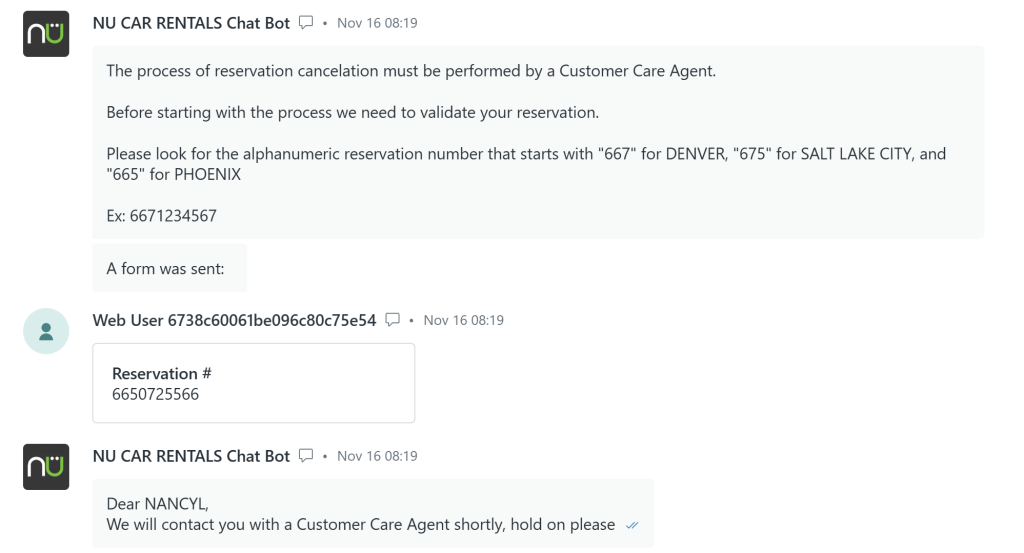
While the chatbot handles many inquiries efficiently, some queries require assistance from a live agent. When a renter is transferred to an agent, the “In Queue” tab in the upper right corner of your Zendesk App will display the number of clients waiting for assistance.

Macro Responses for Chat
Our uniform process requires us to utilize the macro responses from Greeting, Recap and Closing. These responses can be found by clicking the “Macro” box on the lower left of the Zendesk website.
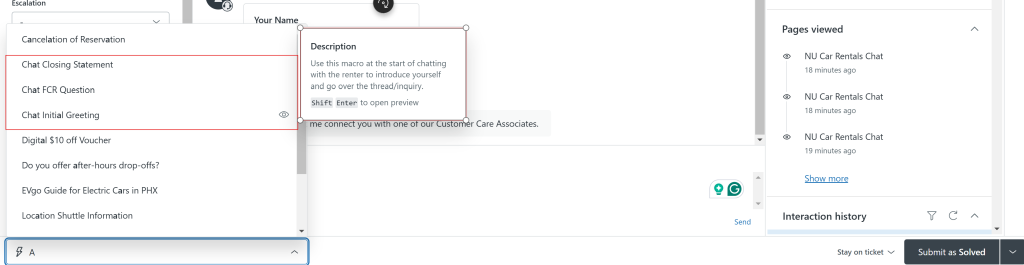
Chat Initial Greeting
To start, copy the Renters name that appears on the left-hand side of the screen.
Select the “Chat Initial Greeting” Macro:
- Locate and apply the “Chat Initial Greeting” macro to the ticket.
Edit the Name:
- Replace “web” with the name displayed on the left-hand side of the screen (the renter’s name).
Understand the Reason for Transfer:
- Check the top of the ticket to understand why the renter was transferred to you.
Paraphrase the Reason for Transfer:
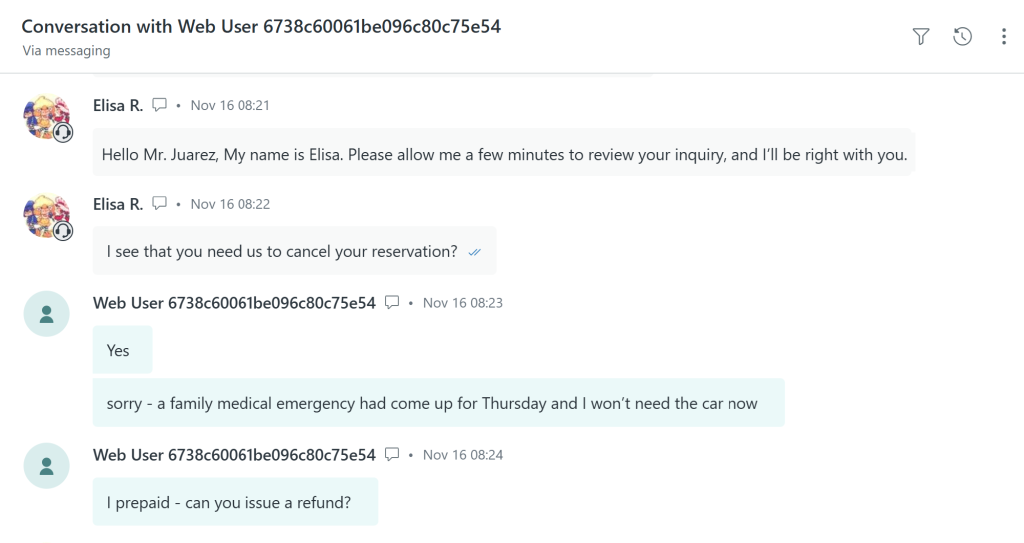
Summarize the reason for the transfer in your response to the renter. Similar to the example below where Elisa R. confirmed that the renter is asking to cancel the reservation.
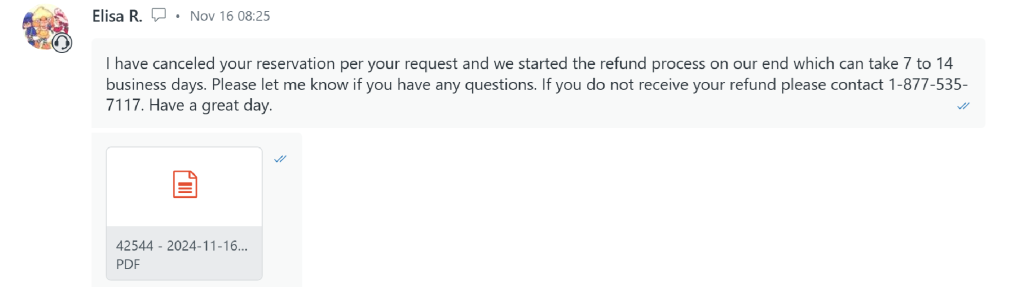
Once the process is complete, create a professional response and provide any necessary information that the renter will need.
Chat FCR Question
Select the FCR Question macro response to ensure First Chat Resolution.

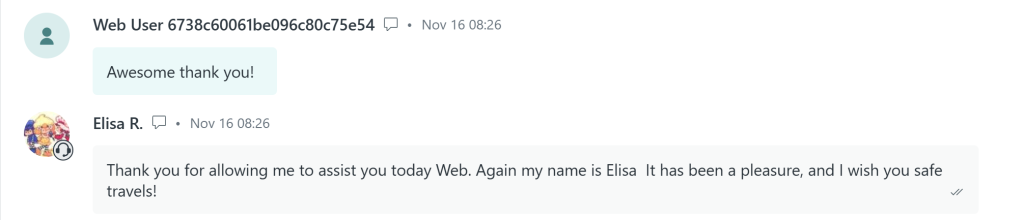
Chat Closing Statement
Finally, close the chat window after sending the Chat Closing Statement macro.
Closing the Ticket
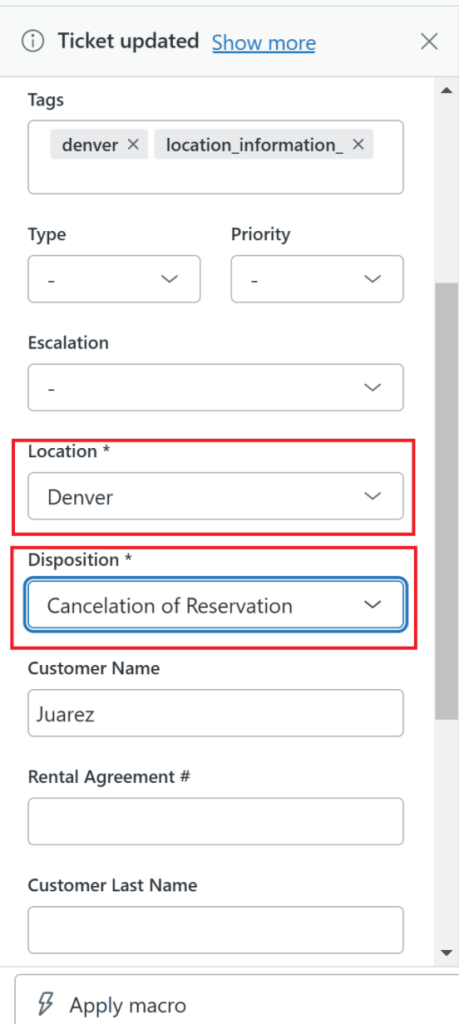
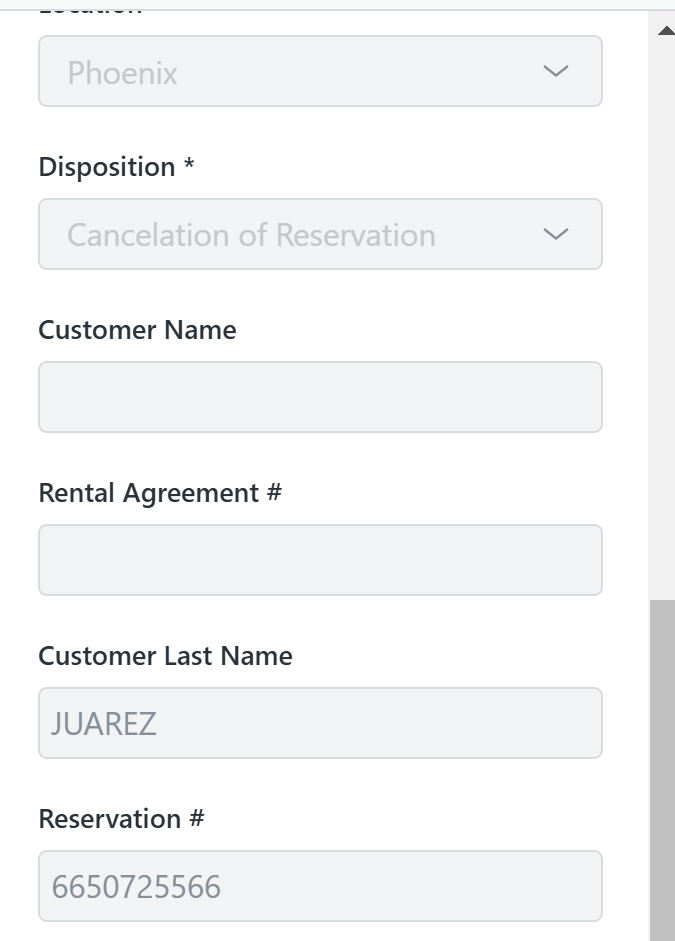
The very last step requires us to close out the ticket by selecting the Location and Disposition on the left side of the screen and lastly, select and click “Submit as Solved” on the lower right hand-side of the screen.