Ring Recording Via BackOffice Tool (Call Disposition Report BETA)
Objective: Streamlining Sales Dispute Resolution: We’re integrating our Backoffice tool with Ring recordings to streamline the sales dispute process. To ensure these requests appear on the call disposition report for your location managers, please follow these steps:
1. Add the issue under call disposition.
2. Mark it specifically as a sales dispute via BackOffice.
This will enable location managers to easily upload the relevant recording links for each transaction and keep an eye for updates by refreshing the page.
Step 1
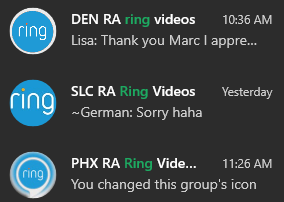
Make sure to only ask for the recordings if we really need it. It takes time for both ends to gather and review. For now, CC Supervisors will have to request using the WhatsApp Ring groups and the Location Managers will reply back once it’s uploaded. There is no need to ask for it if there is no declaration page, A.D. charge for spouses, Upgrade dispute for XXAR who got offered an EV Car or 12 passenger vans.
Step 2
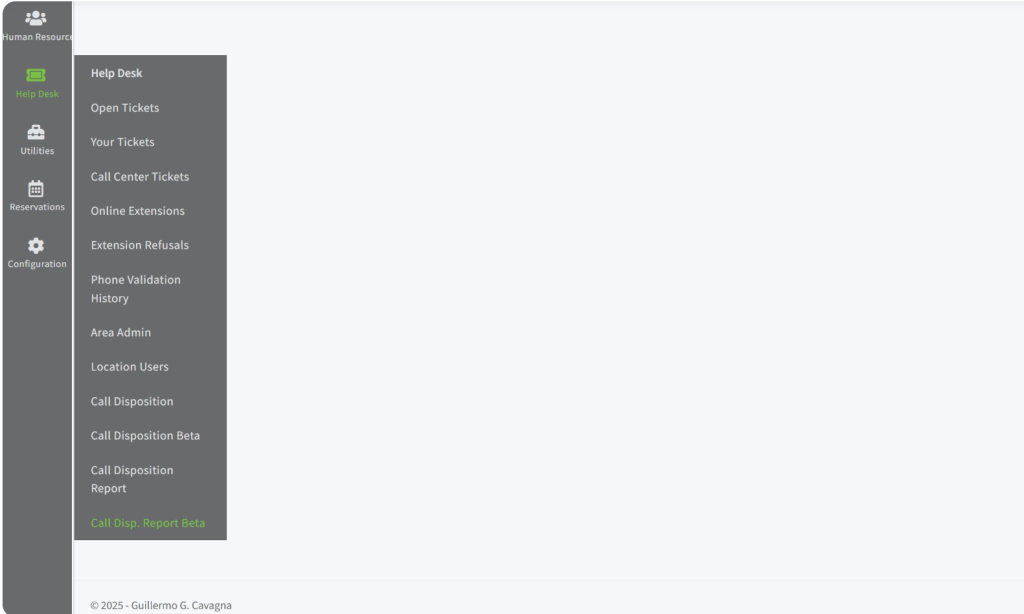
Navigate to https://backoffice.nucarrentals.us/default Click Help Desk – Call Disposition Report
Step 3
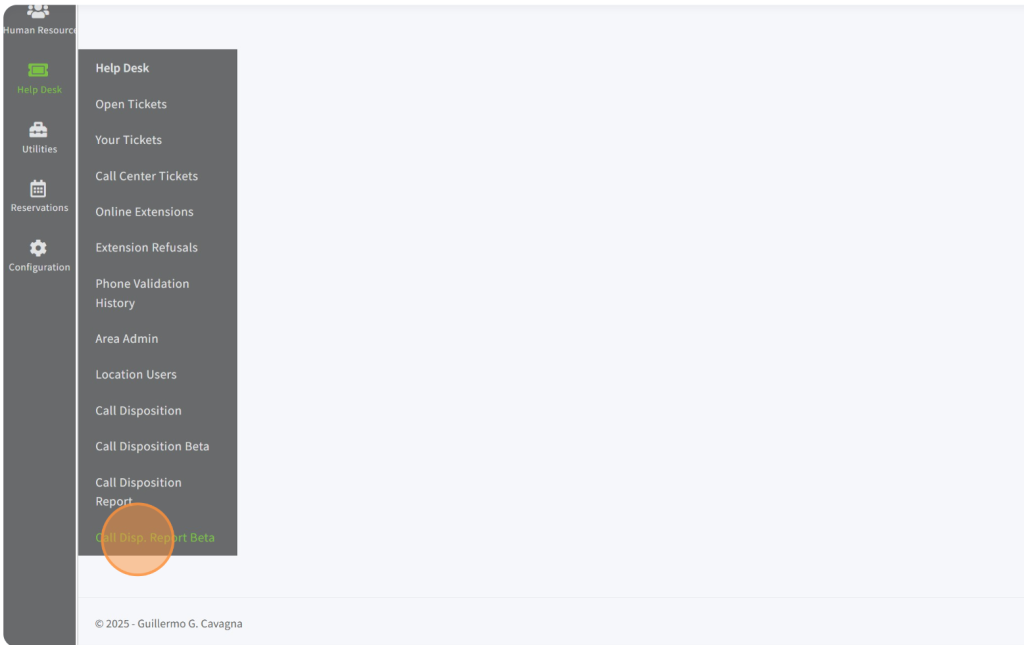
Click “Call Disp. Report Beta” to view the saved dispositions that were tagged with Sales Dispute. Remember that the complaint will only appear on the report if it’s saved under call disposition marking “Has a Sales Dispute”.
Step 4
Click the “Has Sales Complaint” and change the date if needed to view any submitted dispositions with Sales Disputes.
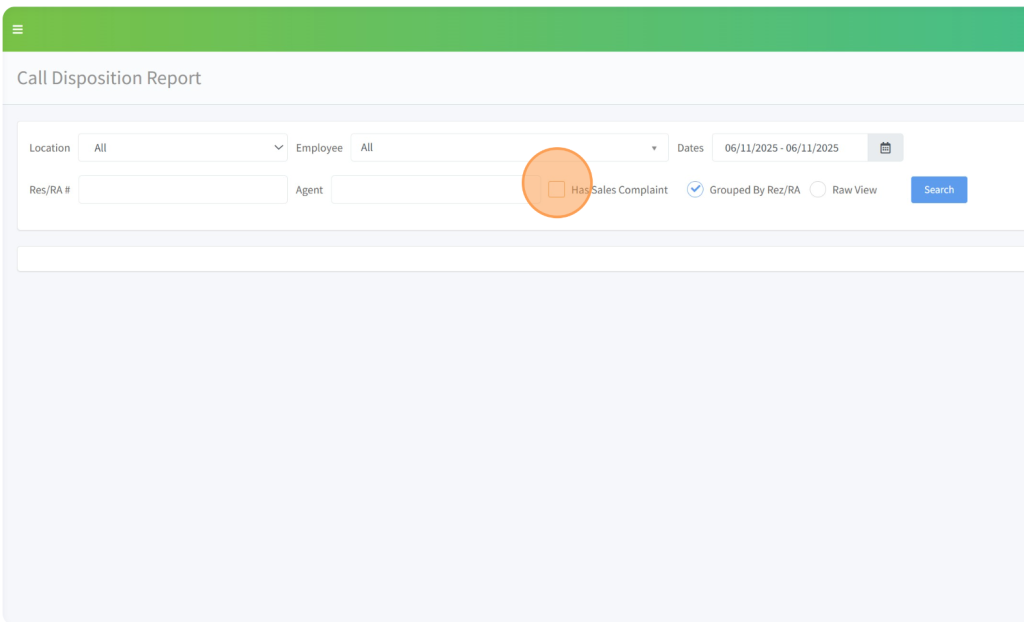
Step 5
Click “Search” (Update the dates since it’s currently based on the rental date)
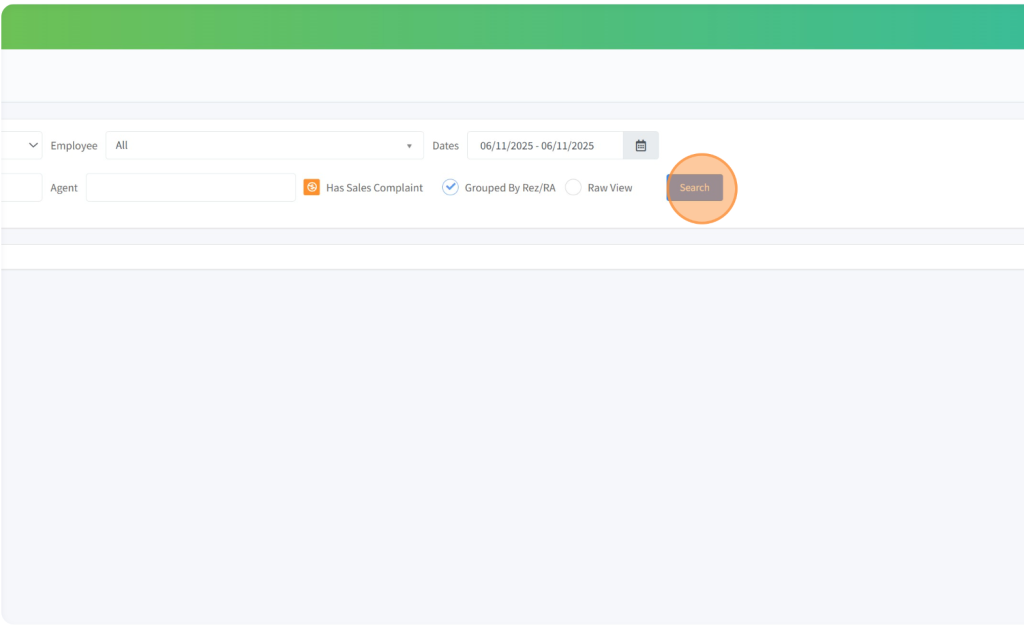
Step 6
Once submitted, the system will generate all entries tagged with sales disputes.
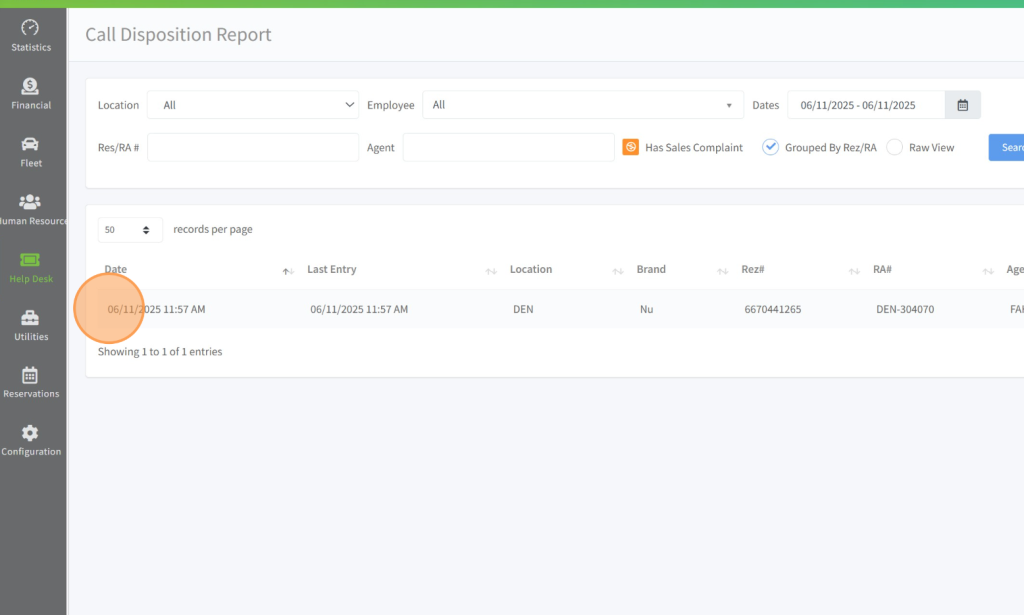
Step 7
Click the i logo to view the history.
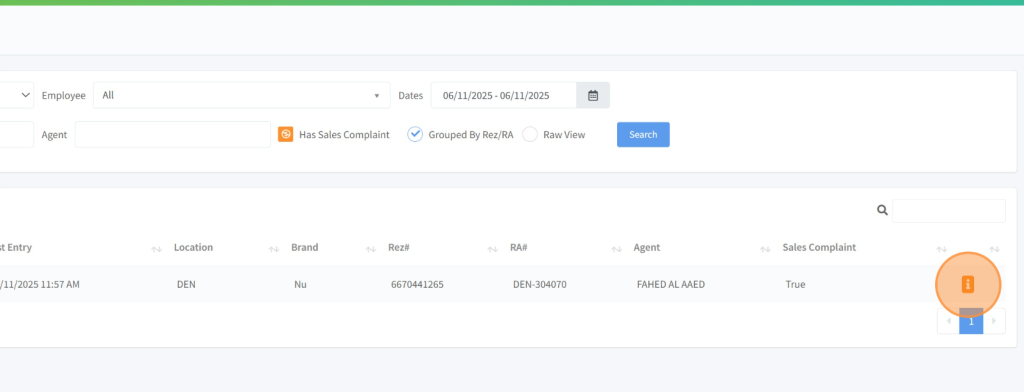
Step 8
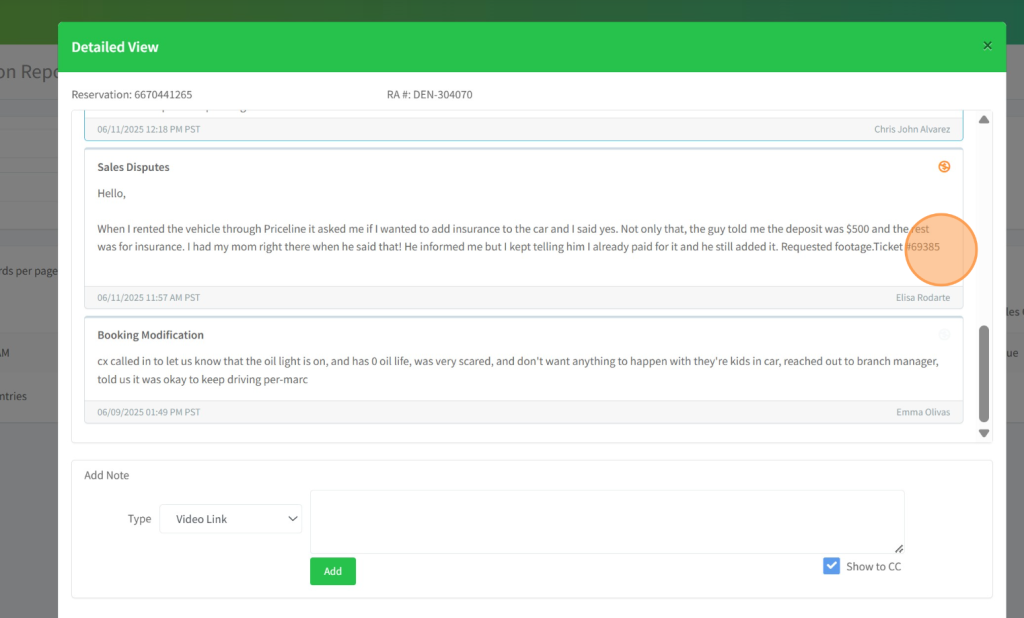
Read and understand the situation based on the notes. For now, CC Agents will have to notify using WhatsApp if the recording needs to be pulled. Please submit the RA# to the Manager or Supervisor on duty who has access to the Ring Chat Group for all locations.
Step 9
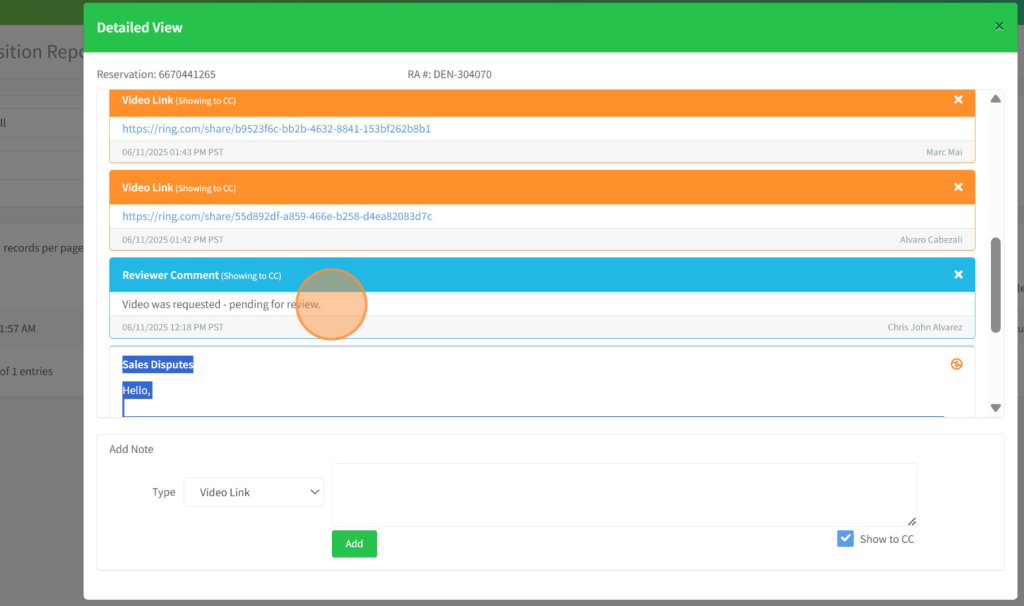
Once the location uploads the recording, it will appear as “Video Link” as shown below, and it will take you to another page via Ring.com where you can view the interaction.
Step 10
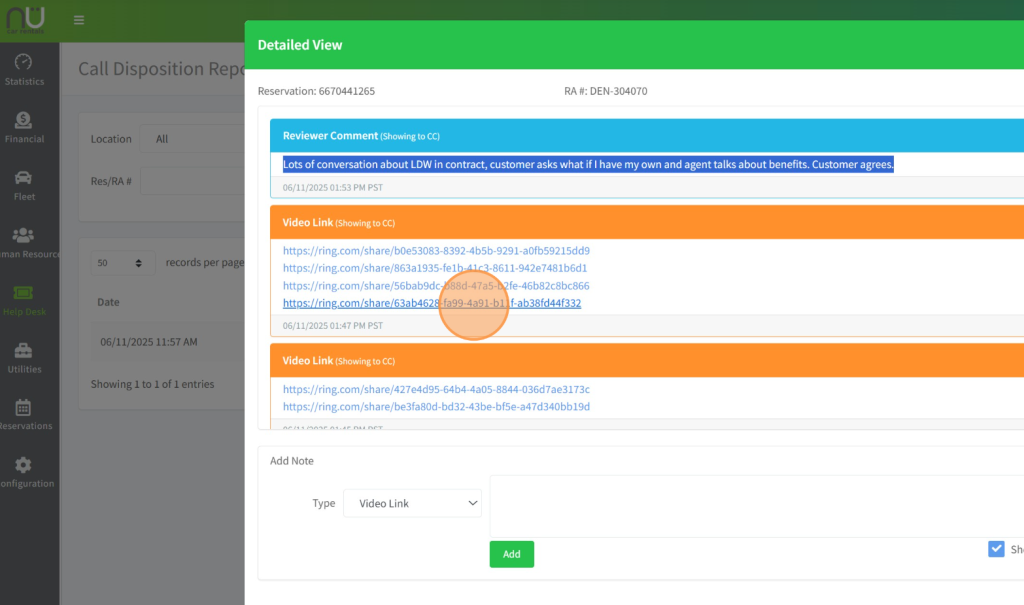
For this example, Marc provided his perspective on the interaction, which will contribute to the ongoing investigation’s pursuit of a fair resolution. Follow the suggested resolution. Click the dropdown under “Type” and change it to “Comment” to save your notes.
Step 11
Finally, get back with the renter to advise and close the case with a fair resolution based on the interaction, and add your notes. Remember to always input the complaint if the agent is wrong or lacked on some areas using the “Complaint Tracker” Sheet, so it can be reported for improvement.
